cMOB-20 App: Remote Monitoring for Cameras & Video Encoders
In today’s world, security is a major concern for both personal and professional spaces. Whether you're a homeowner looking to protect your family or a business owner monitoring your premises, having a reliable surveillance system is essential. cMOB-20 is one such surveillance application designed to provide seamless monitoring, recording, and controlling of cameras and video encoders through your Android or iOS device. With a plethora of features including real-time live monitoring, remote playback, PTZ control, and more, this app has become a go-to choice for many users worldwide.
This comprehensive guide will walk you through the process of downloading and using the cMOB-20 app, covering everything from installation to advanced features. Whether you're a first-time user or a seasoned pro, this article will help you understand how to make the most of cMOB-20 to ensure your surveillance system is both efficient and easy to manage.
What is cMOB-20?cMOB-20 is a powerful mobile surveillance app designed for remote monitoring and control of CCTV cameras, video encoders, and other security devices. This app supports live streaming, instant video playback, snapshot captures, PTZ (Pan-Tilt-Zoom) control, bidirectional talk, and alarm push notifications. It allows users to access their security system from anywhere in the world via their smartphones or tablets, providing a robust solution for both home and business security.
With the support of various connection methods, including P2P (InstaOn) and DDNS, users can quickly connect to their devices and begin monitoring live footage. Whether you're using it for simple home security or as part of a larger, multi-device surveillance setup, cMOB-20 provides an intuitive interface and powerful features that enhance your security management.
How to Download the cMOB-20 App?
Downloading and installing the cMOB-20 app on your Android or iOS device is simple. Follow these steps for both platforms:
For Android Users:
Open Google Play Store:
On your Android phone or tablet, open the Google Play Store app.
Search for cMOB-20:
In the search bar at the top, type cMOB-20 and press enter.
Select the App:
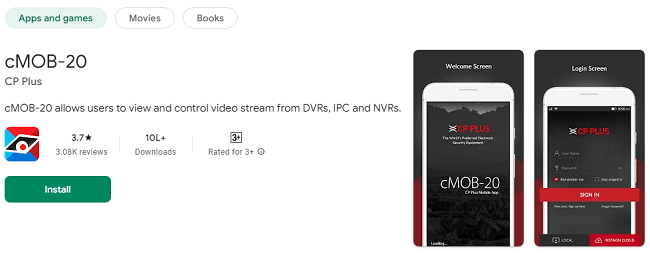
From the search results, select the app titled cMOB-20 by CP Plus.
Install the App:
Tap the Install button to download and install the app on your device.
Launch the App:
Once the installation is complete, tap Open to launch the app.
Sign Up or Log In:
You will be prompted to sign up or log in using your cloud account credentials.
For iOS Users:
Open App Store:
On your iPhone or iPad, open the App Store app.
Search for cMOB-20:
In the search tab at the bottom, type cMOB-20 in the search bar.
Select the App:
From the list of search results, choose the cMOB-20 app developed by CP Plus.
Install the App:
Tap the Get button, then Install to download the app. If prompted, enter your Apple ID credentials or use your fingerprint/Face ID for authorization.
Launch the App:
After the installation, tap Open to launch the app.
Sign Up or Log In:
You can either register for a new account or log in using your existing credentials.
How to Set Up cMOB-20 App for First-Time Use?
After successfully installing cMOB-20, the next step is to set it up for use. Setting up your surveillance system through the cMOB-20 app can vary slightly depending on the devices you are using (IP cameras, NVRs, DVRs, etc.), but the general steps remain consistent.
Step 1: Register or Log In
When you first open the app, you'll need to either create a new account or log in using an existing one. To create an account, simply follow the on-screen instructions and provide the necessary information (email, password, etc.). If you already have an account, just enter your credentials to log in.
Step 2: Add Your Surveillance Devices
To monitor your cameras or video encoders, you must add them to the app. The cMOB-20 app offers several ways to add devices:
Option 1: Add via P2P (InstaOn)
P2P (Peer-to-Peer) allows you to quickly connect to your devices without requiring port forwarding or any advanced networking configuration.
Scan the device’s QR code using the Add Device feature in the app.
Input the device’s username and password, and the app will automatically establish the connection.
Option 2: Add via IP/DDNS
For devices connected via IP or DDNS (Dynamic Domain Name System), manually enter the IP address or domain name, port number, and device login credentials.
This method is useful if you're using an NVR or DVR system that supports DDNS.
Option 3: Add via Local Network (LAN)
If your surveillance devices are on the same local network, you can search for devices directly through the app. Simply select LAN Search and the app will scan for available devices within the same network.
How to Use cMOB-20 App: Key Features Explained
Once you’ve successfully set up your devices, cMOB-20 provides a wide range of features to help you manage and monitor your surveillance system effectively.
1. Live Remote Monitoring
One of the most important features of cMOB-20 is the ability to monitor live video feeds from your surveillance cameras. The app allows real-time viewing of live footage from all connected devices. You can switch between different cameras or even view multiple camera feeds simultaneously.
InstaOn (P2P): This feature provides instant real-time live monitoring without the need for complex network configurations.
IP/CPPlusDDNS: This allows you to connect using a static IP address or a DDNS address for remote access.
2. Remote Playback
If you want to review recorded footage, cMOB-20 allows you to access your recorded videos remotely. This feature is ideal for reviewing footage when you're not physically near the recording device.
Access Playback: Select the camera or device you wish to playback footage from and choose the date and time to view recorded videos.
3. Snapshot and Picture Search
The app enables you to capture snapshots of live video feeds. This is helpful if you need to save specific moments for documentation or further review.
Save Images: Tap the snapshot icon to take a screenshot of live video.
Search Images: The app also allows you to search for saved snapshots based on different criteria.
4. PTZ Control (Pan-Tilt-Zoom)
Many modern security cameras come with PTZ capabilities, which allow you to remotely control the direction and zoom level of the camera. With cMOB-20, you can control PTZ cameras from your mobile device, giving you the flexibility to monitor areas of interest more closely.
Control PTZ: Tap the PTZ button on the app to pan, tilt, or zoom your camera remotely.
5. Bidirectional Audio (Talk) Feature
Another unique feature of the cMOB-20 app is its bidirectional audio support. You can listen to the audio captured by your surveillance system and communicate with people through the camera's built-in speaker and microphone.
Talk: Use the two-way audio feature to speak with people through the camera, whether for greeting visitors or issuing instructions.
6. Alarm Push Notifications
Stay informed about any unusual activity detected by your surveillance cameras with alarm push notifications. When a motion event or alarm is triggered, the app sends a real-time push notification to your device.
Activate Push Notifications: Enable the alarm feature in the settings to receive push notifications on your phone.
7. Cloud User Registration and Modification
cMOB-20 allows users to register and modify their cloud accounts directly from the app. This makes it easy to manage and access your devices remotely, whether you're at home or on the go.
Register and Modify Account: Access the account settings to register new users or modify existing user details.
Troubleshooting Tips
While the cMOB-20 app is generally easy to use, you might encounter occasional issues. Here are a few troubleshooting tips:
Device Not Showing Up: Make sure the device is connected to the same network (for LAN search) or that the correct IP/URL is entered for remote access.
Live Feed is Lagging: Check your internet connection to ensure sufficient bandwidth for streaming.
Unable to Login: Double-check your credentials or reset your password if needed.
Push Notifications Not Working: Ensure push notifications are enabled in the app settings and that your device has sufficient permissions.
Latest Updates for cMOB-20
cMOB-20 is regularly updated to ensure that users get the best performance, new features, bug fixes, and improved security. Here are some of the latest updates for the cMOB-20 app (as of 2024):
1. Enhanced User Interface (UI)
Improved navigation: The user interface has been refined for a more intuitive experience, making it easier to switch between live view, playback, and device settings.
Customizable Dashboard: Users can now personalize their home screen with quick access to preferred devices or camera groups.
2. Cloud Storage Improvements
Faster Uploads and Syncing: Cloud video storage has been optimized to reduce upload time and ensure that recorded footage syncs quickly.
Enhanced Cloud Management: Users can now organize and manage recorded footage more easily within the app.
3. Enhanced Push Notifications
Custom Alert Filters: Users can fine-tune their notifications to receive alerts only for specific events (e.g., motion detection, camera offline, etc.).
Real-Time Event Detection: Improved motion detection algorithms ensure more accurate alerts for any suspicious activities.
4. Increased Camera Compatibility
Support for New Camera Models: The app has expanded its compatibility with a broader range of cameras and video encoders.
Improved PTZ Control: PTZ (Pan-Tilt-Zoom) controls have been optimized for smoother camera movement and faster response times.
5. Live Streaming Quality Enhancements
Higher Resolution Streaming: Users can now enjoy higher resolution live streaming (up to 4K in certain models) for better video clarity.
Reduced Latency: The app now delivers faster video feeds with lower latency for real-time monitoring.
6. Automatic Device Search
Improved LAN Search: Devices connected to your local network are now detected more quickly, reducing the time it takes to set up new devices.
7. Bug Fixes and Stability Improvements
Crash Fixes: Multiple crash-related bugs have been fixed to improve app stability.
General Performance Enhancements: Overall app performance has been improved, making it more responsive and faster when switching between views and accessing settings.
8. Security Enhancements
Two-Factor Authentication (2FA): To enhance account security, users can now enable two-factor authentication when logging into the app.
Encryption of Stored Data: Video footage and user data are now encrypted to improve privacy and protect against unauthorized access.
Frequently Asked Questions (FAQs)
1. How do I add a device to the cMOB-20 app?
Answer:
You can add a device by:
Scanning the QR code on your device (camera or NVR/DVR).
Manually entering the device’s IP address and login credentials.
Using LAN search to find devices on the same network.
2. How do I view live video feeds?
Answer:
To view live feeds:
Open the app.
Select the device from your device list.
Tap on Live View to start watching the video stream.
3. Can I use the app without an internet connection?
Answer:
You need an internet connection to access your devices remotely. However, if you're on the same local network (Wi-Fi), you can view the cameras without needing mobile data or internet.
4. How can I enable motion detection alerts?
Answer:
To enable motion detection alerts:
Go to Settings > Alarm Settings.
Enable Motion Detection and Push Notifications.
Set up the type of alerts you want to receive.
5. Can I control PTZ (Pan-Tilt-Zoom) cameras?
Answer:
Yes! If your camera supports PTZ, you can control it:
Tap the PTZ control icon when viewing the live feed.
Use the on-screen buttons to pan, tilt, or zoom the camera.
6. How do I record video on my mobile device?
Answer:
To record video:
Go to the live feed of the camera you want to record.
Tap the Record button on the screen.
The video will be saved to your mobile device.
7. How do I reset my password if I forget it?
Answer:
If you forget your password:
Tap Forgot Password on the login screen.
Enter your registered email address.
Follow the instructions in your email to reset your password.
8. How can I update the app to the latest version?
Answer:
To update:
For Android: Open Google Play Store, search for cMOB-20, and tap Update.
For iOS: Open App Store, go to the Updates tab, and tap Update next to the app.
9. Can I access my cameras remotely from anywhere?
Answer:
Yes, you can access your cameras remotely through the internet using P2P (InstaOn) or DDNS. Just ensure your device is set up for remote access.
10. What should I do if my device isn't showing up in the app?
Answer:
If the device isn’t showing up:
Check if the device is powered on and connected to the network.
Use LAN search if the device is on the same Wi-Fi network.
Make sure the device’s IP or DDNS info is entered correctly.
Restart the app or the device and try again.
11. How do I delete a device from the app?
Answer:
To delete a device:
Go to the Device List.
Select the device you want to remove.
Tap the Delete or Remove option in the settings.
12. How do I contact customer support if I have an issue?
Answer:
If you need help:
Go to Settings in the app.
Tap Help & Support or Contact Us.
You can submit a support ticket or view FAQs for further assistance.
ConclusionThe cMOB-20 app is a comprehensive and easy-to-use surveillance tool that offers a wide range of features, including live monitoring, remote playback, bidirectional audio, PTZ control, and much more. By following the steps in this guide, you can quickly set up and start using the app to manage your security system with ease.
Whether you're looking to monitor your home security system, manage cameras across multiple locations, or keep an eye on your business, cMOB-20 provides a powerful and flexible solution for all your surveillance needs. The app's intuitive interface, combined with advanced features like instant real-time monitoring, remote playback, and snapshot searching, ensures that you have full control over your security system at your fingertips.
Trending Now
Updates